

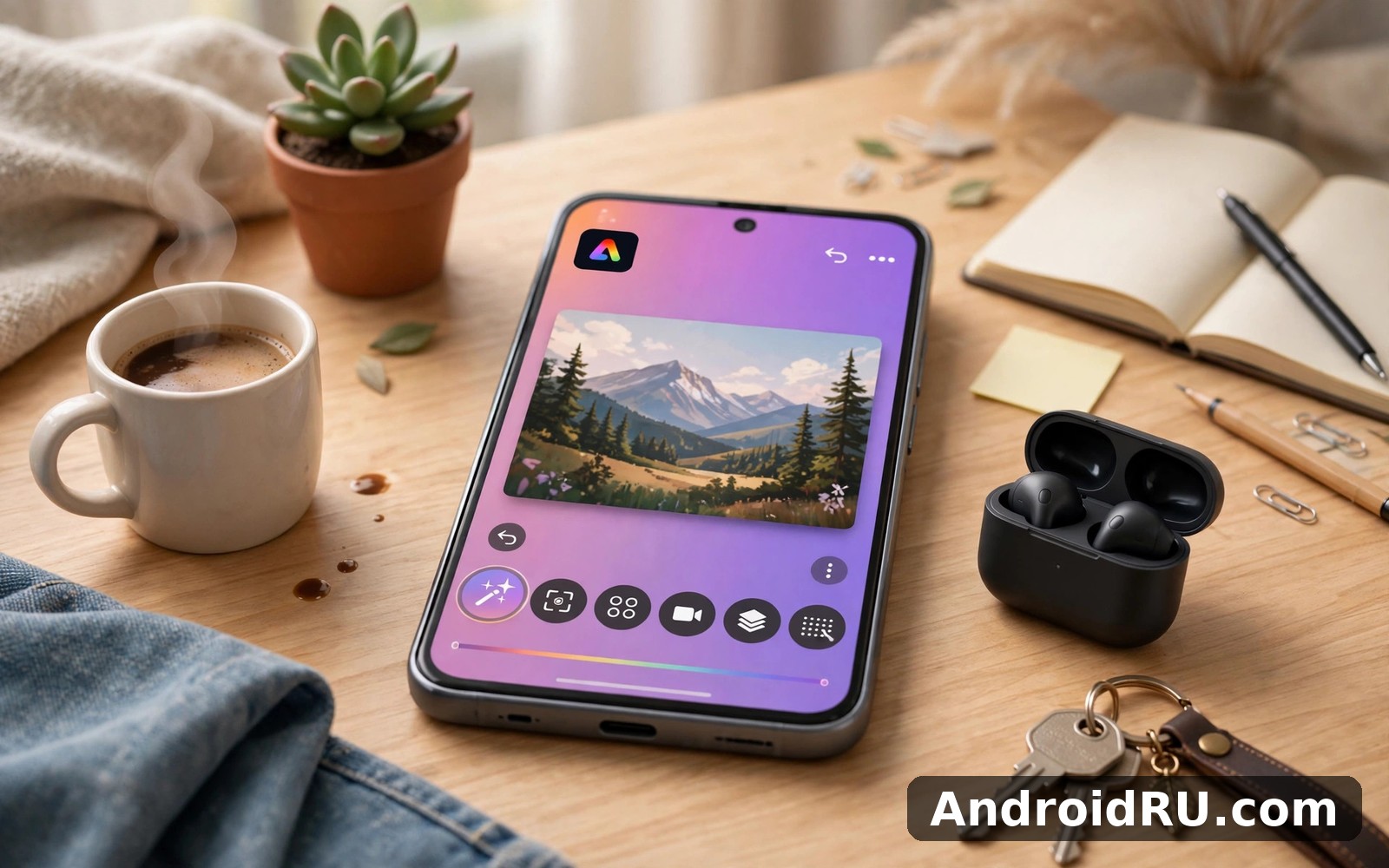
Download APK Adobe Express AI Photo Video Latest Feature Review & Network Performance
I opened Adobe Express to make a birthday post for a friend, expecting a quick template job. Twenty minutes later I had a photo with the background swapped, text that matched the mood, and a short video version of the same design ready for a story. That is the promise of the app in one session: design work that used to take a desktop and an afternoon now fits in a phone and a coffee break. This review looks at the latest AI features, how the app handles network sync and uploads, and whether it is the right tool for the kind of quick creative work most people actually do on their phones.
You will find a walkthrough of generative fill, text-to-image, and the template library, a close look at video tools, real-world notes on cloud sync and offline work, and a comparison with two AI video rivals. There are honest pros and cons, a clear verdict for different kinds of users, and answers to the questions people ask before they commit to a subscription.
What Adobe Express Is and What the Latest AI Update Adds
Adobe Express is a mobile design app for social posts, flyers, logos, short videos, and quick photo edits. It sits between a simple photo editor and a full design suite: easier than Photoshop, far more capable than a filter app. The latest updates push the AI tools to the front of the experience. Generative fill, text-to-image, text effects, and background removal are no longer buried in menus. They sit on the main editing screen, one tap away from the canvas.
The update also refreshed the template library with new layouts for reels, stories, posters, and business cards, and it improved the brand kit so colours, fonts, and logos stay consistent across designs. Search inside the template library got better too. You can now search by mood, occasion, or colour rather than only by format, which makes finding a starting point much faster when you already know the feeling you want.
Generative Fill: Removing and Replacing Parts of a Photo
Generative fill is the feature I reach for most. Brush over an object you want gone, describe what should replace it if anything, and the app rebuilds that area. A stray bin in the background of a product shot disappears cleanly. A dull patch of sky becomes a sunset. The results are strongest on simple backgrounds and small objects. Large removals on busy scenes can leave soft edges or odd textures, and the app sometimes needs a second attempt with a slightly different brush area.
The tool works best when you keep the brushed area tight around the object. Loose, oversized selections give the AI more room to invent, and the invention is usually where the mistakes appear. A small, precise selection on a plain background returns a result that is hard to spot at normal viewing size. That is the standard I judge it by, and it passes that standard more often than not.
Text to Image and Text Effects for Quick Designs
Text to image turns a written prompt into a picture you can drop into a design. Type a short description, pick a style such as photo, illustration, or watercolour, and the app generates four options. The quality is good for backgrounds, textures, and simple scenes, and weaker for hands, faces, and text inside the image itself. I use it for backgrounds and mood images rather than for anything that needs a believable person.
Text effects are the quieter win. You can style a headline to look like it is made of chrome, neon, felt, or gold foil, and the effect applies in one tap. For social posts, where the headline carries the whole message, that single tap saves the fiddling that used to take several layers and a steady hand. The effects render quickly and they stay editable, so you can change the wording afterwards without rebuilding the style.
Templates That Save Time Without Looking Generic
The template library is large, and the new search makes it usable rather than overwhelming. The trick is to treat a template as a starting point, not a finished design. Change the photo, swap the headline, and adjust the colours to your brand, and the result stops looking like a template. Leave everything as it came, and your post will look like a thousand others. The app makes the first path easy: every element on the canvas is tappable and replaceable, and the layout reflows around your changes.
Photo Editing: Background Removal, Resize and Brand Kits
Background removal is one tap and it handles most portraits and product shots well, including hair edges that used to be the weak point of mobile tools. Once the background is gone you can drop the subject onto a colour, a gradient, or one of your generated images. The edge refinement is good enough for social sizes, though at full zoom you can still find a rough edge on complex hair or fur.
Resize is the feature that pays for the app for anyone who posts on more than one platform. Design once, then resize the same canvas for a story, a feed post, and a banner, and the app reflows the layout for each size. It is not perfect: text can overlap on very narrow formats, and you should check each size before you publish. Even with that check, it is far faster than rebuilding the same design three times.
Brand kits keep your colours, fonts, and logos in one place and apply them across designs. For a small business or a creator with a consistent look, this is the difference between a feed that feels planned and one that feels random. Set the kit up once, and every new design starts from your identity instead of from a blank page.
Video Editing: Templates, Captions and Short-Form Tools
Video is where the latest update shows the most growth. The app now offers video templates with timed text, transitions, and music built in, so a short reel or story can be assembled from a few clips in minutes. You can trim clips, adjust speed, add captions, and layer music from the built-in library. The caption tool generates text from speech automatically, and the timing is usually accurate enough to publish without manual fixes.
Caption styling is generous, with fonts, colours, and highlight styles that match the design side of the app. That matters, because captions are often the first thing a viewer reads on a muted video. The app also handles the practical side: aspect ratios for reels, stories, and square posts, plus a safe-zone guide so text does not hide under platform buttons.
Captions, Music and Timing in Short Videos
Automatic captions are the single biggest time saver in the video workflow. A thirty-second clip gets captioned in seconds, and the words appear in time with the speech. I still proofread them, because names and unusual words get misheard, but fixing two or three words is far faster than typing a whole caption track. Music comes from a royalty-free library, and the app can duck the volume under speech so the voice stays clear.
Timing controls are simple but complete. You can split a clip, trim either end, change the speed of a section, and reorder clips by dragging. There is no multi-track timeline like a desktop editor, which is a fair trade for the speed. For videos under a minute, the simple timeline is faster. For longer, layered edits, you will feel the limits and want a heavier tool.
Export Quality and Format Choices
Exports come in the sizes and formats social platforms expect, including vertical video for reels and stories. The app offers quality settings, and the default produces a clean result for phone viewing. Rendering a short video takes well under a minute on a mid-range phone, and the app shows progress clearly so you know whether to wait or come back. Longer projects take proportionally longer, and the phone gets warm during a big render, which is normal for video work.
Network Performance: Cloud Sync, Uploads and Offline Work
Adobe Express is a cloud-first app. Your designs live in your Adobe account, sync across devices, and open on the web as well as on your phone. That sync is the feature that matters most for network performance, because every edit, upload, and export touches the network in some way. I tested the app on home Wi-Fi, on mobile data, and on a weak public connection, and the differences were clear but manageable.
On a good Wi-Fi connection, sync is effectively instant. Save a design on the phone and it appears on the web version within seconds. Uploads of photos from the camera roll are quick, and the app compresses large images sensibly before sending them, so a 12-megapixel photo does not stall the queue. Generative AI features take a few seconds longer, because the image goes to a server for processing and comes back with the result. That round trip is usually five to fifteen seconds, which feels acceptable for the work it does.
Cloud Sync Speed and Reliability
Cloud sync reliability was strong in my testing. I never lost a design, and the app keeps a local copy while the upload finishes, so a dropped connection does not eat your work. The sync indicator is honest: it shows when a design is saved locally, when it is uploading, and when it is fully synced. That clarity matters, because the worst sync failure is the silent one where you assume a design is safe and it is not.
The one slow spot is the first sync of a large project with many high-resolution photos. The app uploads in the background, but opening that project on another device before the upload finishes shows placeholders instead of images. The fix is patience: wait for the sync indicator to clear before switching devices. On mobile data, the app asks before uploading large files, which protects your data allowance.
Upload Times, Large Files and Mobile Data
Upload speed tracks your connection, as you would expect, but the app handles the edges well. A single photo uploads in a second or two on Wi-Fi. A short video clip of thirty seconds takes noticeably longer, and the app shows a progress bar rather than leaving you guessing. If the connection drops mid-upload, the app resumes instead of starting over, which saves both time and data on a flaky connection.
For mobile data, the settings let you limit uploads to Wi-Fi only, and I recommend that for anyone on a small data plan. Video uploads and AI processing are the two hungriest operations, and running them on mobile data can burn through an allowance faster than you expect. The app warns you before a large upload on mobile data, and that warning has saved me more than once.
Working Offline: What Works and What Does Not
Offline work is limited but real. You can open designs you have already synced, edit text, move elements, and adjust layouts without a connection. What you cannot do offline is generate AI images, run generative fill, remove a background, or sync changes to the cloud. Those features need a server. The app saves your offline edits locally and syncs them when the connection returns, which worked cleanly in my tests. If you know you will be offline, open the designs you need while you still have signal so they are cached and ready.
Adobe Express vs Hailuo and AI Video Generator: A Head-to-Head Comparison
The honest comparison depends on what you are making. Adobe Express is a design app with video tools. Hailuo AI Imagevideo Maker and AI Video Generator are video-first tools built around AI generation. The table below compares them on the same criteria, so you can see where each one wins.
| Feature | Adobe Express | Hailuo AI Imagevideo Maker | AI Video AI Video Generator |
|---|---|---|---|
| Main strength | Design plus photo and video | AI video from text or image | Quick AI video clips |
| Text to image | Yes, with style choices | Yes, video focused | Yes, basic |
| Generative fill | Yes | Limited | No |
| Video templates | Yes, many | Yes, AI generated | Yes, many |
| Captions | Yes, automatic | Yes, on some plans | Yes, automatic |
| Brand kit | Yes | No | No |
| Offline editing | Partial, synced designs | No, cloud based | No, cloud based |
| Free tier | Yes, with limits | Yes, with credits | Yes, with limits |
| Best for | All-round social design | AI video creation | Fast video clips |
Adobe Express wins when your work mixes photos, graphics, and video in one place, and when brand consistency matters. Hailuo AI Imagevideo Maker wins when your main job is turning a prompt or a still image into a moving video, because its generation engine is built for that single purpose. AI Video AI Video Generator is the fastest route to a simple video clip when you do not need design tools at all. None of the three is the wrong choice in general; the right one is the one that matches the work you do most often.
The Adobe ecosystem adds a quiet advantage. If you also scan documents or collect reference material, Adobe Scan PDF Scanner App pairs naturally with Express, since a scanned page can become a design asset in a few taps. That kind of small, practical link between apps is where a single account across several tools starts to pay off.
Pros and Cons of Adobe Express
The app is strong for quick creative work, and its limits show up exactly where you would expect a mobile tool to be limited: heavy video work and deep control.
Pros
- Generative fill and background removal that work in seconds, with results good enough to publish at social sizes without extra cleanup.
- Resize and brand kits that keep one design consistent across every platform, which saves real time for anyone who posts daily.
- Automatic captions and video templates that turn a few clips into a finished short video in minutes.
- Cloud sync that is fast and honest about its state, with local copies that protect your work when the connection drops.
- A template library that is large, searchable, and genuinely useful as a starting point rather than a crutch.
Cons
- AI features need a connection, so generative fill, text to image, and background removal stop working offline.
- The free tier limits premium templates, fonts, and AI credits, and the paywall appears at the moment you find the feature you want.
- Video editing has no multi-track timeline, which limits longer or more layered projects.
- Large uploads and AI processing use noticeable mobile data, so the app is best on Wi-Fi for heavy work.
Who Adobe Express Is For
Social media creators get the most from this app. If you post daily, juggle several formats, and need a design to look consistent without spending an hour on each one, the combination of templates, resize, and brand kits is built for exactly that routine. Small business owners fit the same pattern: a flyer, a story, and a short video for the same promotion, all from one design, all in the same brand colours.
Teachers, students, and community organisers also benefit, because the app makes a decent poster or announcement in minutes without design training. The free tier covers most of that work, and the learning curve is gentle. Professional designers will find the app useful for drafts and quick social assets, but they will still reach for desktop tools when a project needs precise control, layered files, or print-ready output.
Frequently Asked Questions About Adobe Express
Is Adobe Express free to use?
Yes, there is a free plan with templates, basic photo editing, and a limited set of AI features. The premium plan adds the full template library, premium fonts, brand kits, and more AI credits. Check the current price inside the app before subscribing, since pricing varies by region and promotion, and the free plan is enough to judge whether the premium tools fit your routine.
Does Adobe Express work offline?
Partly. Designs you have already synced open and edit offline, including text and layout changes, and the app saves those edits locally until the connection returns. AI features such as generative fill, text to image, and background removal need a connection, because they run on a server. Open the designs you need while you still have signal if you plan to work offline.
How fast is cloud sync in Adobe Express?
On good Wi-Fi, sync is effectively instant, with a design appearing on another device within seconds. Large projects with many high-resolution photos take longer on the first sync, and the app shows progress so you can see when it is done. On mobile data, uploads are slower and the app warns you before sending large files.
Can Adobe Express make videos as well as photos?
Yes. It offers video templates, trimming, speed control, automatic captions, music, and export sizes for reels, stories, and square posts. It handles short videos well, and a thirty-second clip is usually ready in minutes. Longer or heavily layered videos are better suited to a dedicated video editor with a multi-track timeline.
How does Adobe Express compare with Hailuo for video?
Adobe Express is the stronger all-round design tool, with photo editing, templates, brand kits, and video in one app. Hailuo is the stronger choice when your main job is generating video from a text prompt or a still image, because its engine is built for that purpose. Many creators use both: Hailuo for the generated clip, Express for the captions, layout, and publishing sizes.
Final Verdict: A Fast Design Studio That Fits in Your Pocket
Adobe Express earns its place by removing the friction from everyday design work. Generative fill fixes a photo in seconds, resize turns one design into every format you need, and automatic captions make short video genuinely quick. Network performance is a strength rather than a weakness: sync is fast and honest, uploads resume after a drop, and the app protects your work with local copies when the connection fails.
The limits are the usual ones for a mobile creative tool. AI features need a connection, the free tier holds back the best templates, and video work tops out at short, simple projects. For the audience the app serves best, creators, small businesses, teachers, and anyone who posts often, those limits rarely get in the way. Try the free plan on a real project this week, test the AI tools on your own photos, and let the time you save decide whether the premium plan is worth it.
Get Adobe Express and Related Apps
Ready to try it on your next post? Click here to download the Adobe Express AI Photo Video app and test generative fill on a photo you already have. If you also need to scan documents for your designs, Click here to download the Adobe Scan PDF Scanner App app. And if AI video is your main interest, Click here to download the Hailuo AI Imagevideo Maker app.

